Leveraged trading lets you open a position larger than your available balance by advancing funds from Independent Reserve. With up to 5x leverage, you can amplify both potential gains and potential losses on supported assets.
This step-by-step guide shows you how to open, manage and close leveraged trading positions directly on the Independent Reserve mobile app.
Start leveraged trading on the mobile app
Download or update the Independent Reserve mobile app, then log in to access leveraged trading.
Key takeaways:
- You must pass the suitability test and accept the leveraged trading terms and conditions before you can trade.
- Trade with 2x to 5x leverage on BTC, ETH, DOGE, XRP and SOL.
- Open, manage and close positions all within the app. Optionally, you can set a Take Profit and Stop Loss on your positions, as well as add collateral.
- Leveraged trading is high-risk, and positions can be liquidated if not properly managed.
Before you start leveraged trading
Before placing a leveraged order on the mobile app, you must first:
- Learn how leveraged trading works
- Pass the leveraged trading suitability test (up to 5 attempts).
- Accept the leveraged trading terms and conditions.
- Download or update the Independent Reserve mobile app to the latest version.
*Singapore users: Leveraged trading on Independent Reserve Singapore is only available to Corporate Accredited Investors.
How to open a leveraged position on the mobile app
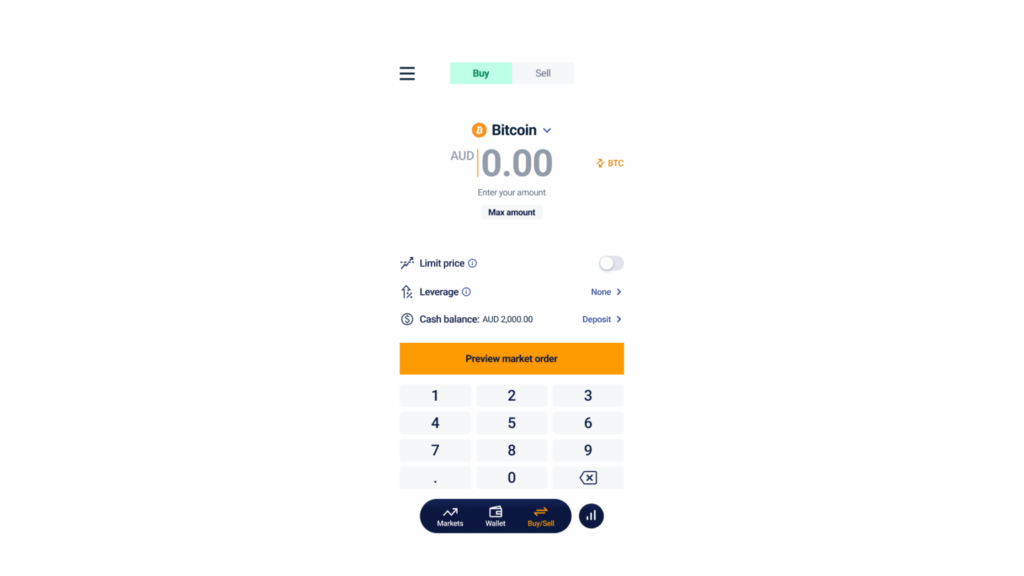
Step 1: Go to the Buy/Sell screen
Navigate to the Buy/Sell screen in the mobile app.
Step 2: Complete the suitability test
If you have already passed the test, skip to Step 3.
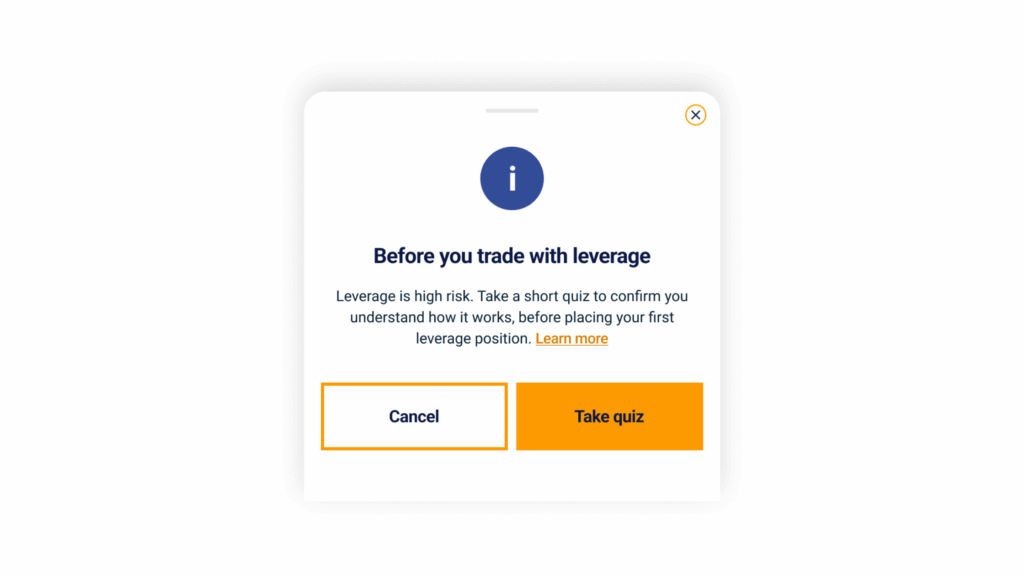
Before you can open your first leveraged position, you’ll need to pass a short suitability test. The quiz tests your understanding of how leverage works and the risks it entails, so you can trade with confidence.
The suitability test will appear the first time you tap Preview leverage order. Complete the quiz, and you’ll be returned to the trade screen to continue.
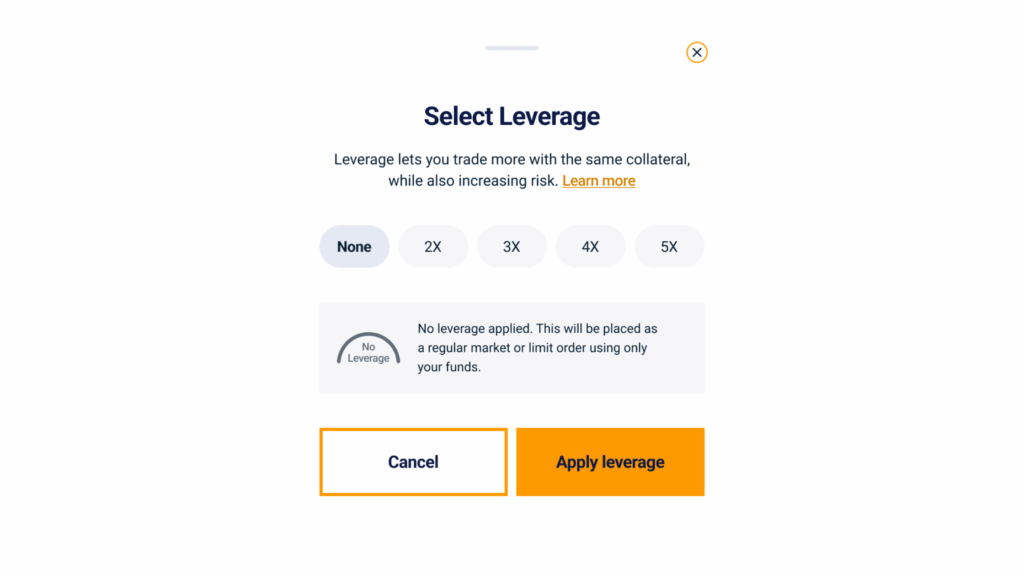
Step 3: Select your leverage ratio
Tap the leverage selector and choose up to 5x. Selecting None will place the order as a standard market or limit trade with no leverage applied.
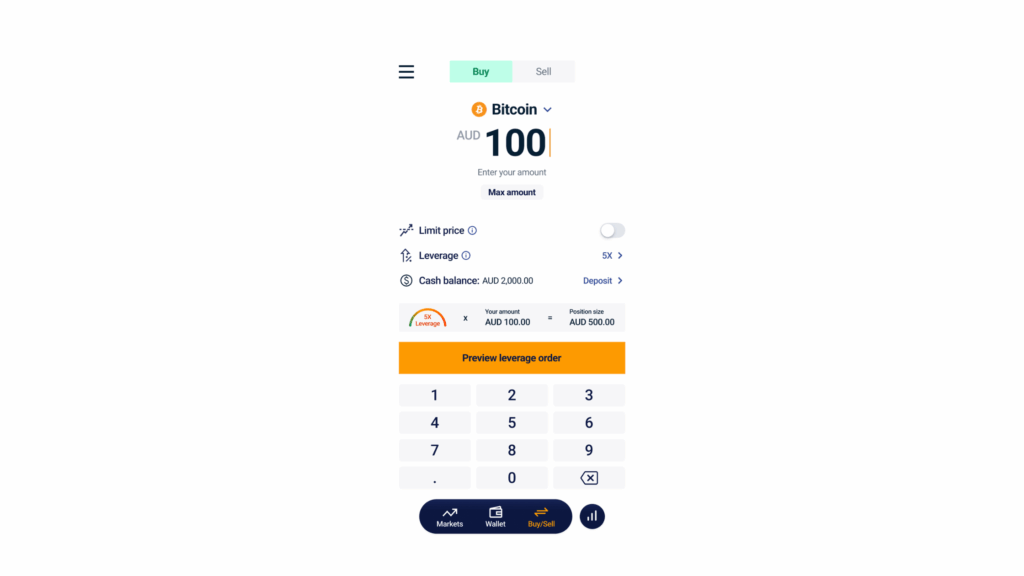
Step 4: Enter your collateral
Enter the amount you’d like to commit as collateral. This is the portion of the position you’re putting up yourself. You can type the amount in or tap the max amount chip.
As you type, the app shows you two things:
- Approx. BTC under the amount, so you can see roughly how much Bitcoin your position will be
- Position size at the bottom of the screen, calculated as your leverage ratio multiplied by your collateral
For example, $100 of collateral at 5x leverage gives you a position size of $500. The other $400 is advanced to you by Independent Reserve.
Once you’ve confirmed the amount, tap Preview leverage order to review the full breakdown.
Step 5: Review your position
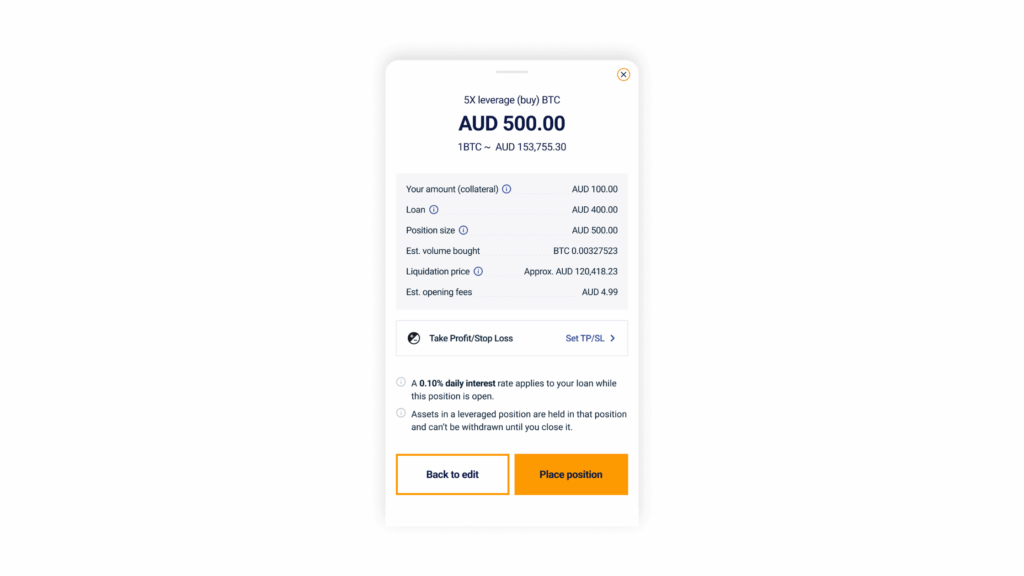
Tap to Preview leverage order to see a full breakdown of your:
- Position size: your collateral multiplied by your leverage ratio
- Collateral: the amount you’re committing from your own funds
- Loan: the amount Independent Reserve is advancing to you to open the position
- Entry price: the market price at which your position will open
- Liquidation price: the price at which your position will be closed automatically if the market moves against you
- Daily interest: the interest charged each day on the advanced funds
- Fees: the trading fee applied to open the position
Step 6: Set Take Profit and Stop Loss
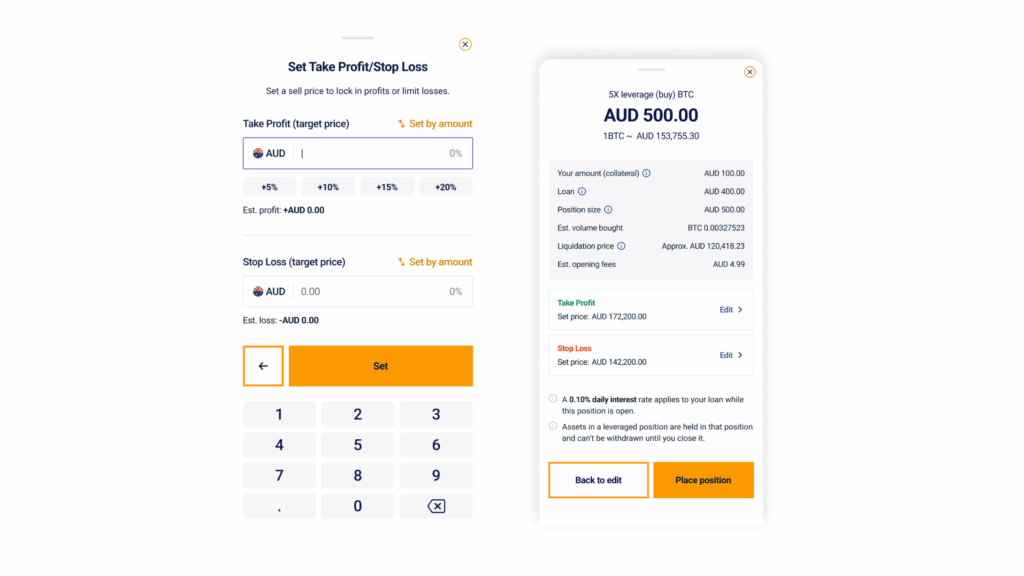
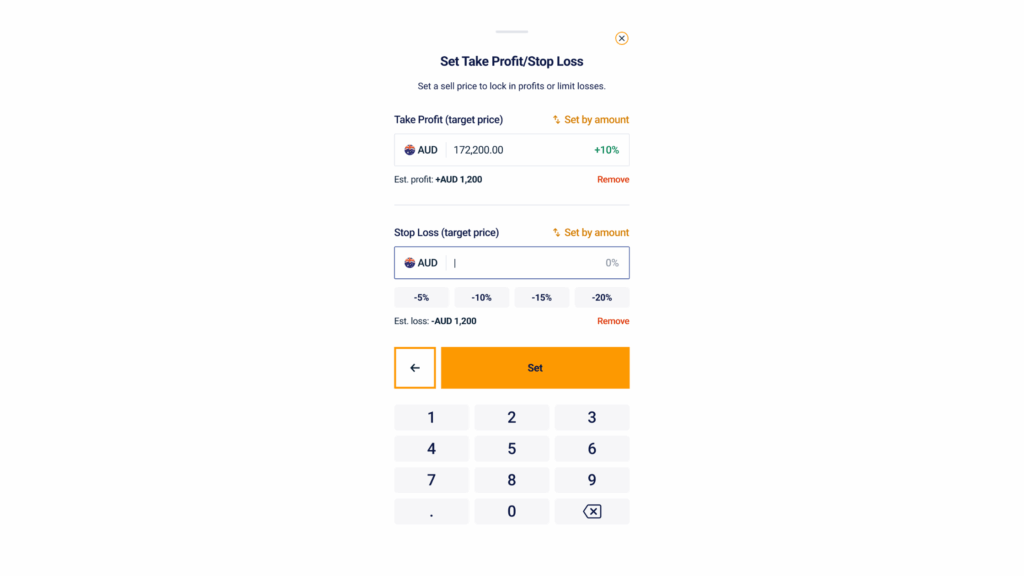
Take Profit (TP) and Stop Loss (SL) are optional, but we recommend setting both. They automatically close your position when the market hits a target price you set in advance, so you don’t have to watch the market constantly.
From the preview screen, open the Set Take Profit/Stop Loss page and enter your target prices. As you type, the app shows your Est. profit and Est. loss in real time, so you can see your potential gains and losses in fiat before confirming.
Tap Set to apply your TP and SL, then tap Place position to open the trade.
Step 7: Place your position and edit your Take Profit and Stop Loss
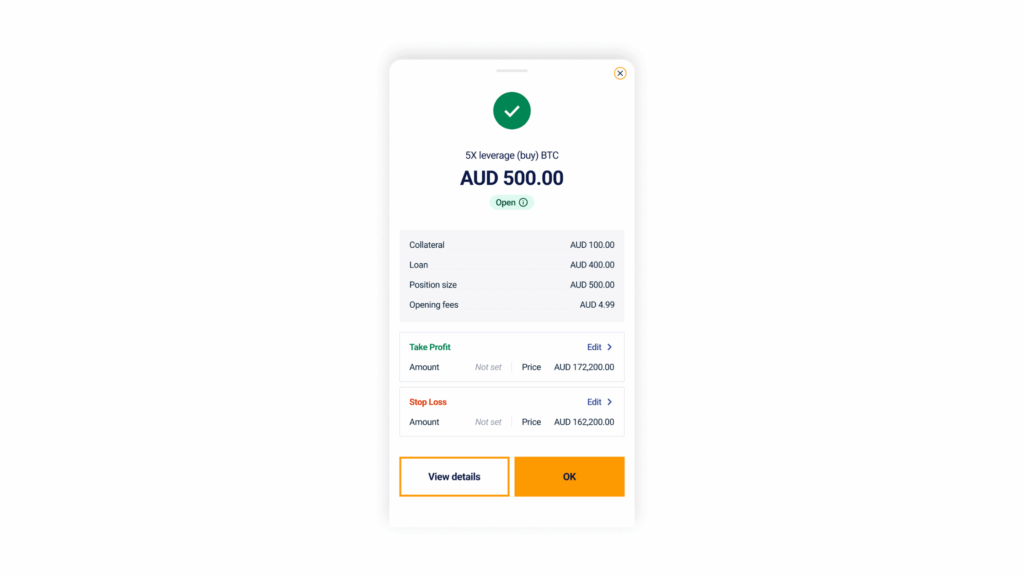
Tap Place position to open your leveraged trade. A confirmation screen will appear, where you can edit your Take Profit and Stop Loss, or add them if you skipped that step earlier.
How to manage your leveraged position
Once your position is open, you can monitor it, adjust your Take Profit and Stop Loss, or exit at any time. To access your position, go to My orders (under Coin details or the Wallet screen), then Leverage order details.
Monitor your position
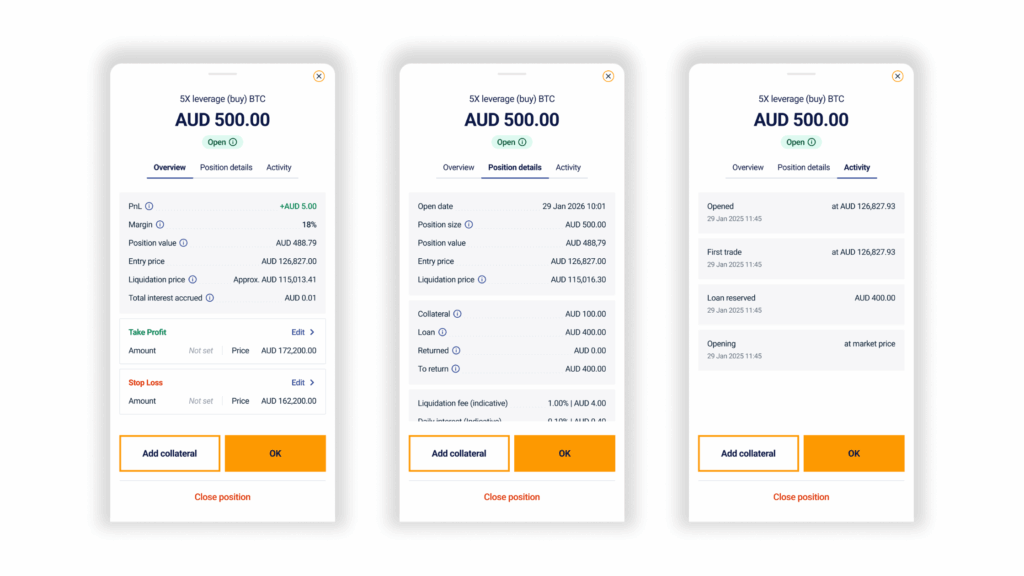
The Leverage order details screen is where you’ll track your position after opening a trade. It has three tabs:
| Tab | What it shows |
| Overview | Current Profit and Loss (PnL), collateral, position value, entry price, liquidation price, and total interest accrued |
| Position details | Open date, position size and value, amount advanced and remaining to repay, indicative liquidation fee, and daily interest |
| Activity | A log of every event on the position, from open to any changes made |
Edit your Take Profit and Stop Loss
You can update your TP and SL at any time while the position is open. To do so, open Leverage order details, tap Edit Take Profit or Stop Loss, enter your new target by amount or price, and confirm.
Add collateral
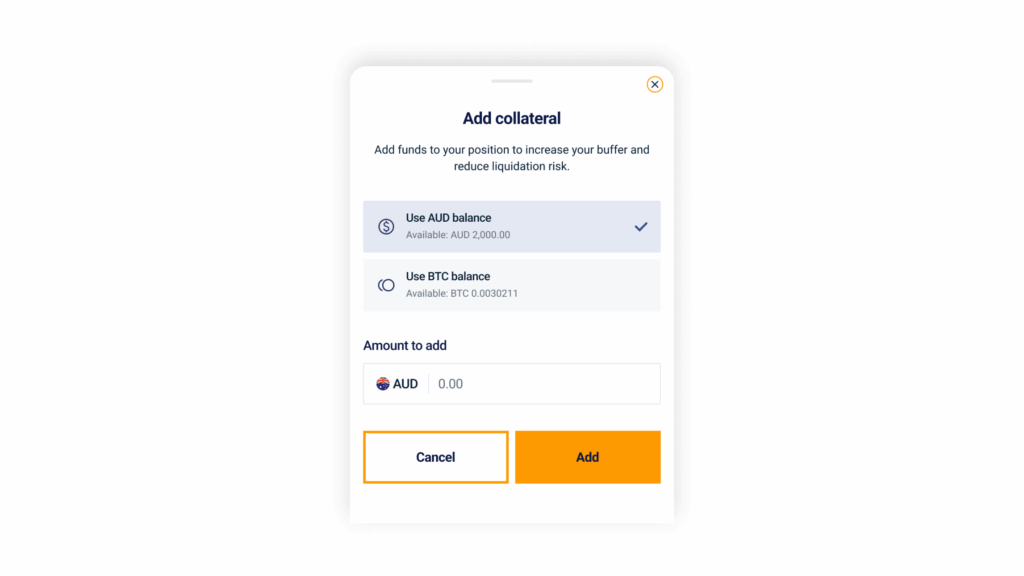
If the market moves against your position, adding collateral lowers your liquidation price and reduces the risk of an automatic close.
Open Leverage order details, tap Add collateral, enter the amount in AUD or crypto, and confirm.
Close your position
When you’re ready to exit a position, open Leverage order details and tap Close position.
You have two options to close a position:
- Close position at market price: sells the position at the current market price. Use this when you want to exit and realise your PnL straight away.
- Close position and keep crypto: uses your Independent Reserve balance to repay the advanced funds. Use this when you want to keep the underlying crypto in your account rather than sell it.
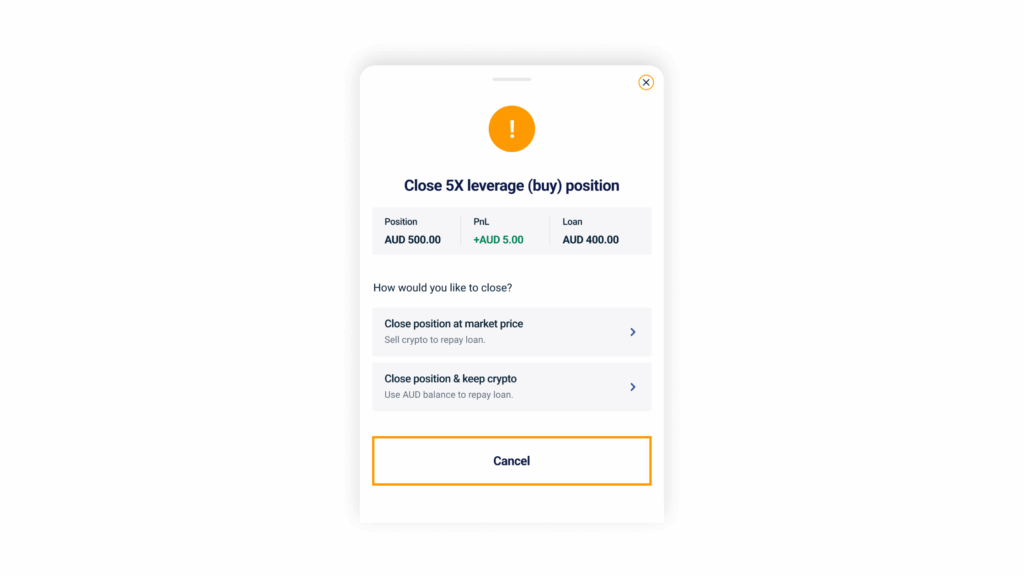
Take a moment to review your details, then confirm to close your position.
Important considerations for leveraged trading
Leveraged trading is a high-risk product. Because you’re trading with advanced funds, both gains and losses are amplified, and losses can exceed your initial collateral.
A few things to keep in mind:
- If the market moves against your position, you may be required to add collateral, or your position may be liquidated automatically.
- Interest accrues daily on the funds advanced to you.
- Take Profit and Stop Loss orders are the simplest way to manage downside risk. We strongly recommend using both.
- Only use leverage if you fully understand how the product works and the risks involved.
For a full breakdown, see our leveraged trading guide and leveraged trading terms and conditions.